

Earnings weeks are busy. Several companies on your watchlist can report within a few days, and checking each one by hand takes time. WarrenAI, the AI chat inside InvestingPro, lets you ask about the whole list at once and adds chart levels to the answer.
This guide shows how I set it up, which prompts work and where the limits are. Facts come from Investing.com’s own pages, checked on 4 Nov 2026. It is general information, not advice on what to buy or sell.
WarrenAI is a good way to get a first read on a full watchlist before earnings. Treat the answer as a starting point for your own checks, not a signal to trade.
Up to 55% off
Up to 55% off in the Early Bird sale until 24 Nov, 8pm Dubai time
Plus an extra 15% with code SRH. The 55% is on the 2-year plan. Yearly plans are 50% off. Monthly billing is not discounted. Check the final price at checkout.
What WarrenAI is
WarrenAI is an AI chat on Investing.com. Investing.com describes it as “your personal market analyst powered by real-time, verified data”. You type a question in plain words, and it answers using Investing.com market data.
- Free: after a free sign-up you get 5 messages to try it.
- Pro: 50 WarrenAI chat credits a month.
- Pro+: 500 chat credits a month.
- Pro Max: 2,000 chat credits a month, plus 1,000 AI chart analysis credits a month.
The plan details are from the InvestingPro plans page. Pro also includes an AI chart analysis tool for technical trading. For prices and the full plan list, see our InvestingPro review and InvestingPro pricing page.
WarrenAI shows its own warning under the chat box: it “may provide incorrect information and is never financial advice”. Keep that in mind for every answer.
Step 1: build the watchlist first
WarrenAI works best when it knows which stocks you mean. Make a watchlist on Investing.com with the companies you follow, for example the ones that report this week. Keep it short enough to read the answer properly. Ten to fifteen names is easier to work with than fifty.
Step 2: add the watchlist and a chart as context
Open WarrenAI and click the plus button under the text box. The Add Context menu has two options: Watchlist and Chart. Pick your watchlist, and if you want one stock looked at closely, add its chart too.
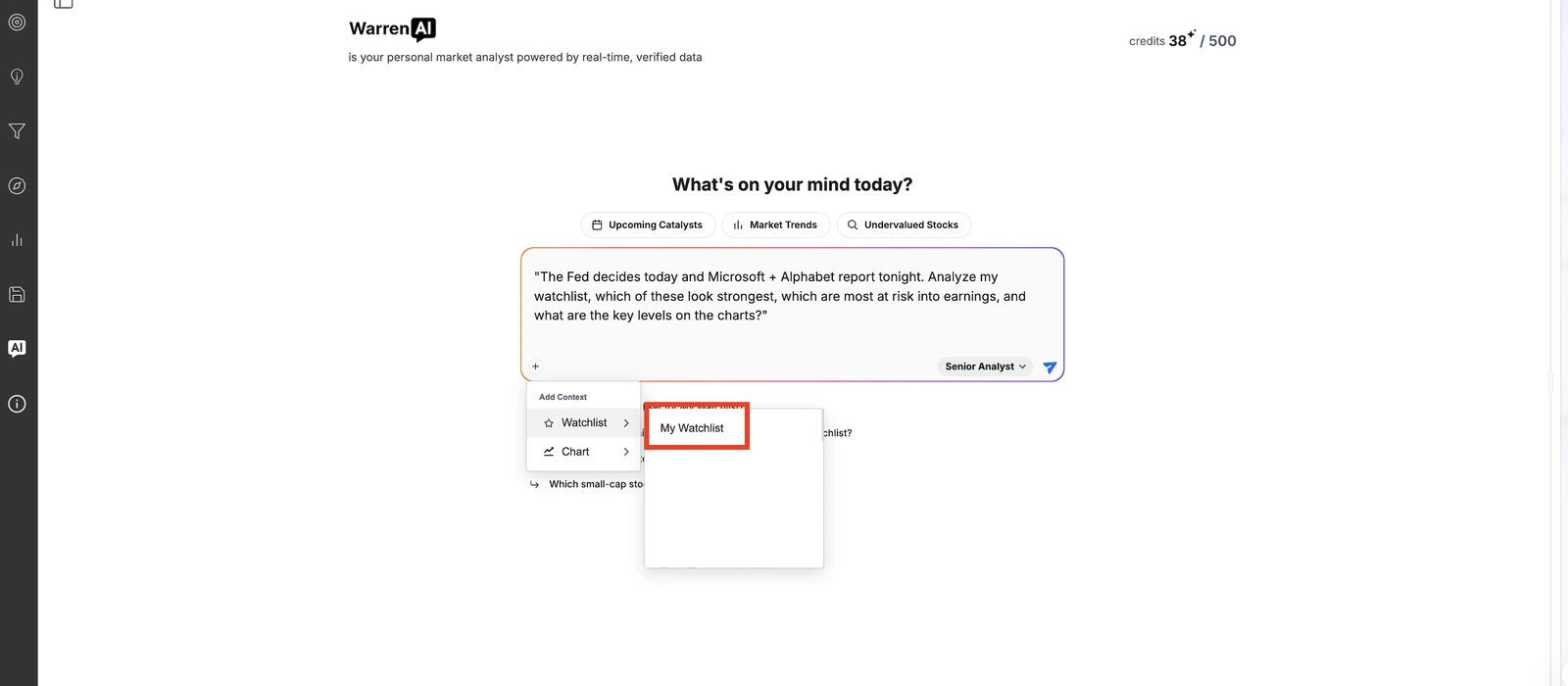
Step 3: ask one clear question
Investing.com’s own example prompt for this use case is:
“The Fed decides today and Microsoft + Alphabet report tonight. Analyze my watchlist, which of these look strongest, which are most at risk into earnings, and what are the key levels on the charts?”
You can copy the shape and change the events. A few other prompts that keep the answer balanced:
- “Which stocks on my watchlist report earnings in the next two weeks, and what are analysts expecting?”
- “For each stock on this watchlist, give me one reason it looks strong and one risk.”
- “On this chart, what are the support and resistance levels, and where are the 20, 50 and 200-day moving averages?”
- “Which names on my watchlist look most stretched after the recent move, and why?”
Ask for reasons and risks, not “what should I buy”. You get a more useful answer, and the decision stays with you.
Step 4: read the answer and the chart side by side
WarrenAI answers in short sections per stock. When you add a chart, it names levels such as support and resistance zones and moving averages, and you can open the chart next to the answer. The Apply to chart button draws those levels on the chart so you can see them.
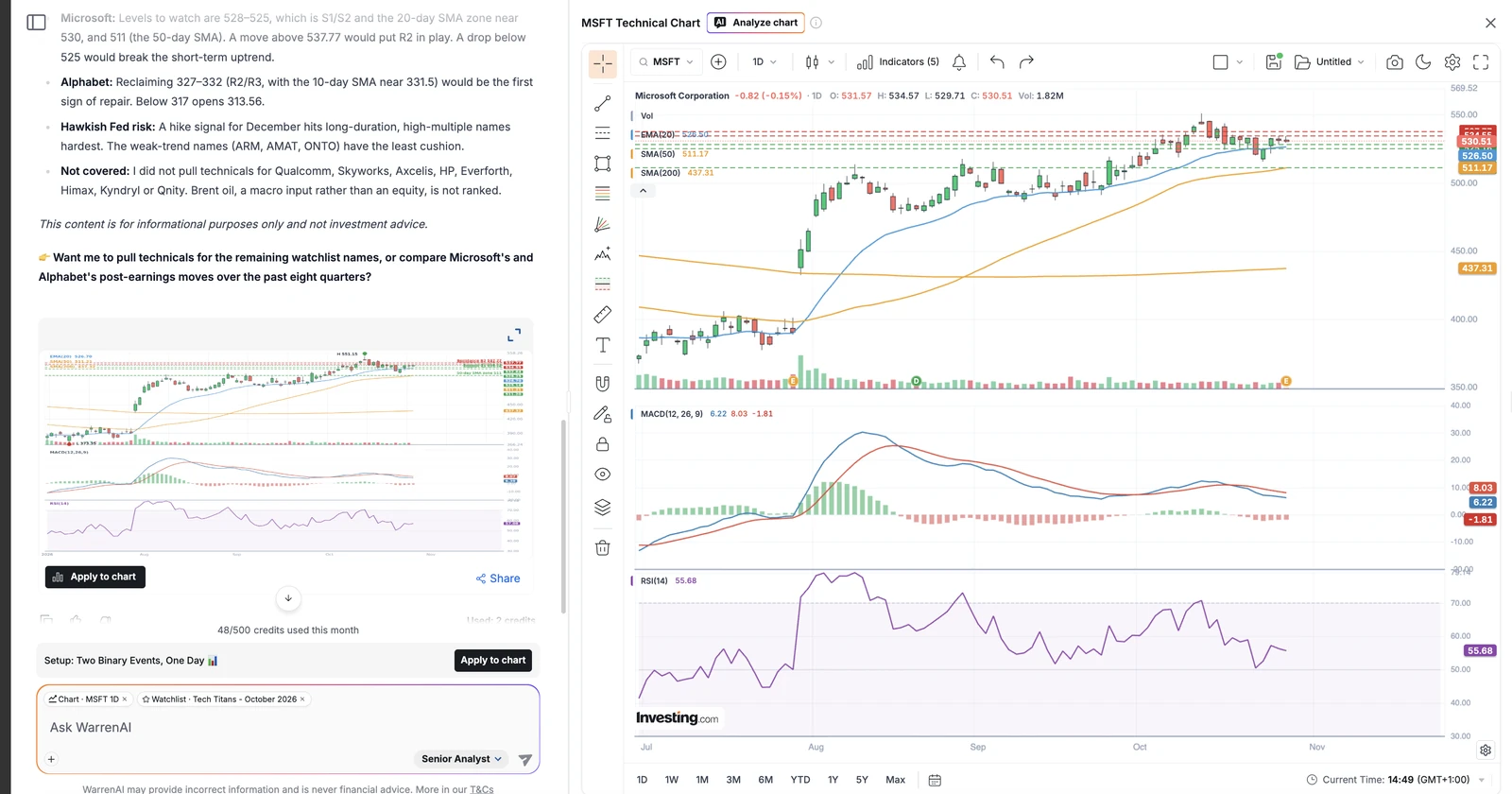
Then check the numbers yourself. Open the chart, look at the earnings date on the stock page, and read the latest results or news. If something in the answer looks off, ask a follow-up, for example “Where does the 50-day moving average sit today?”
What WarrenAI is good at, and where to be careful
Good at:
- A quick first pass over many stocks at once.
- Pulling chart levels, earnings dates and data into one answer.
- Follow-up questions in the same chat, so you can dig into one name.
Be careful with:
- Mistakes. AI answers can be wrong or out of date. Check every number that matters.
- Credits. Long watchlists and many follow-ups use credits. Pro’s 50 a month go quickly in an earnings week.
- Earnings moves. Chart levels describe the past. A results surprise can move a stock straight through them.
- Advice. WarrenAI is never financial advice, and neither is this guide.
WarrenAI vs other AI chart tools
If you mostly want charts, TradingView is the charting standard, and TrendSpider has automated trendlines and pattern tools. WarrenAI’s strength is that it reads your whole watchlist and Investing.com’s company data in one chat. Our TrendSpider vs TradingView comparison and the best charting tools ranking cover the chart side in more depth.
InvestingPro also has ProPicks AI, model-based stock lists. The newest is a US dividend strategy, explained in our ProPicks AI dividend stocks guide.
Is it worth paying for?
Try the free messages first. If you use WarrenAI every week, Pro+ gives you ten times the credits of Pro, plus the rest of InvestingPro’s data. At the time of writing the pricing page shows up to 55% off in the Early Bird sale until 24 Nov, 8pm Dubai time. Check the final price at checkout.
Frequently asked questions
What is WarrenAI?
WarrenAI is the AI chat inside InvestingPro from Investing.com. You ask questions in plain words about stocks and markets, and it answers using Investing.com data. You can add a watchlist or a chart to your question.
Is WarrenAI free?
You can try it for free. A free sign-up gets 5 messages. After that you need a paid plan: Pro includes 50 chat credits a month, Pro+ 500 and Pro Max 2,000.
Can WarrenAI analyze my watchlist?
Yes. Click the plus button under the chat box, choose Watchlist and pick your list. Then ask your question, for example which names look strongest and which look most at risk into earnings.
Can WarrenAI read charts?
Yes. Add a chart as context, and it can name levels such as support, resistance and moving averages. The Apply to chart button draws them on the chart.
Is WarrenAI financial advice?
No. Investing.com says WarrenAI may provide incorrect information and is never financial advice. Use it to speed up your research and always check the numbers yourself.
Prices at a glance
Prices from each official pricing page. Prices can differ by region and may exclude tax.
Research, not advice. This article explains how tools work. It is general information, not a recommendation to buy or sell any investment, and not personal advice. Investing puts your capital at risk and you can get back less than you put in. Prices and plans change, so check the official site before you pay.
Some links on this page are affiliate links. If you subscribe through them we may earn a commission, at no extra cost to you. We score every tool on the same published criteria, using facts from official pages and our own testing. How we make money. This page is general information, not personal investment advice.
Read next
 ReviewInvestingPro reviewStrong valuation tools across many markets. No free plan, and the first-year sale price renews higher.Read the review
 ReviewTradingView reviewThe easiest place to learn and use stock charts, with a useful free plan. Not a source of ratings or picks.Read the review ArticleAI dividend stocks: how ProPicks AI Rock Solid Dividends worksAI dividend stocks explained: how ProPicks AI Rock Solid Dividends (DIVUS15) checks 45 factors beyond yield, rebalances quarterly and shows why.Read the article

 ArticleEarnings calendar tools compared (2026), free and paidEarnings calendar tools compared in plain English: free calendars from Yahoo Finance, Nasdaq and Earnings Whispers, plus Seeking Alpha, TradingView and Fiscal.ai, with prices.Read the article